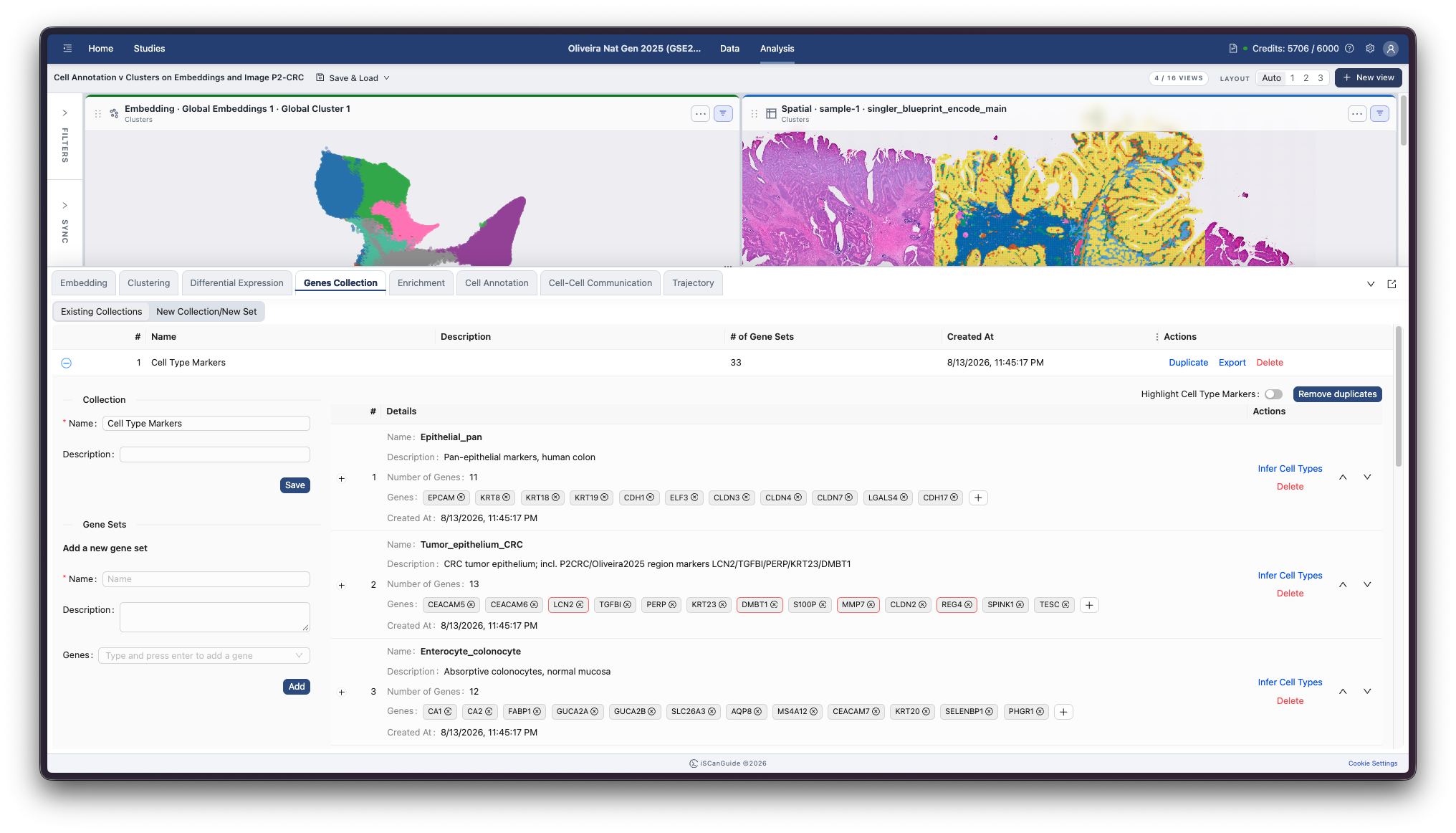
Genes Collection
Shows how to build and manage the gene sets used for enrichment, feature filtering and annotation, by uploading a file, pasting text, entering sets by hand, or taking them from the built-in database.
1Open the Genes Collection tab
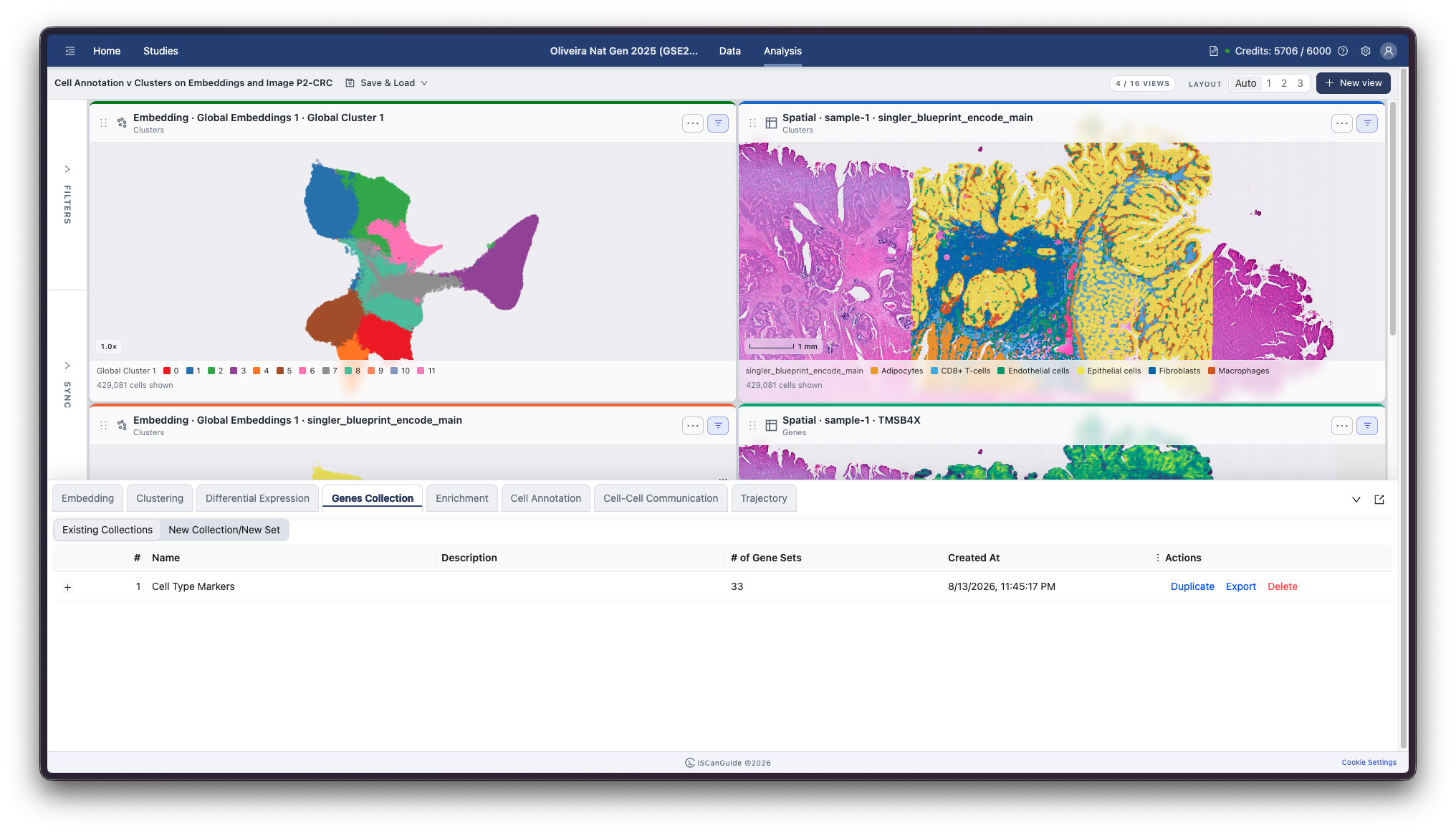
Open Genes Collection in the bottom drawer. A collection holds named gene sets. Use them for enrichment, to restrict an embedding to particular genes, or to annotate cell types.
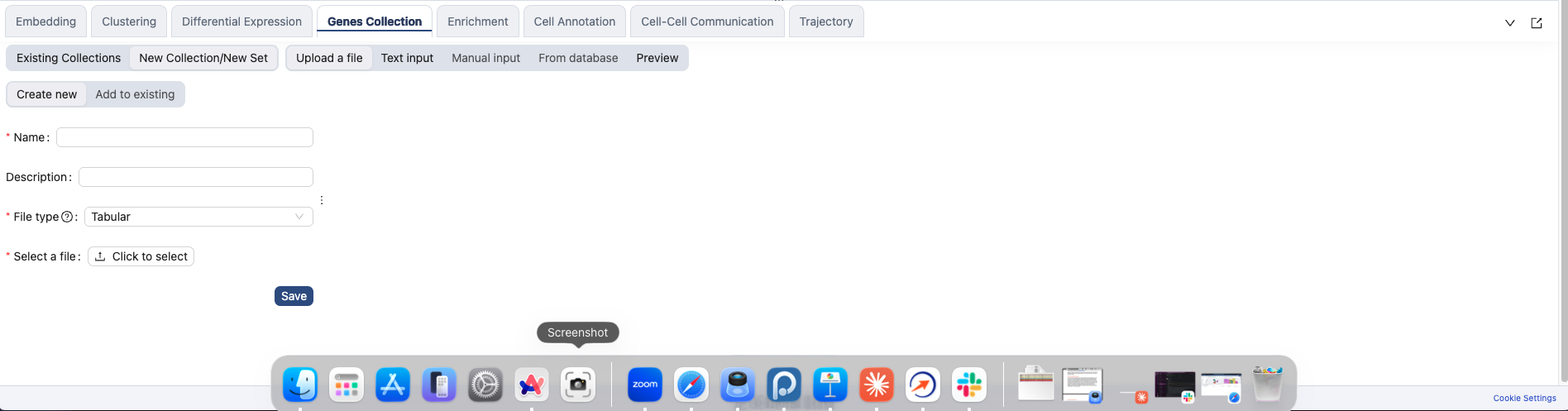
2Create a collection or add to one
Choose Create new and give the collection a name and an optional description, or Add to existing to put your gene sets into a collection you already have.
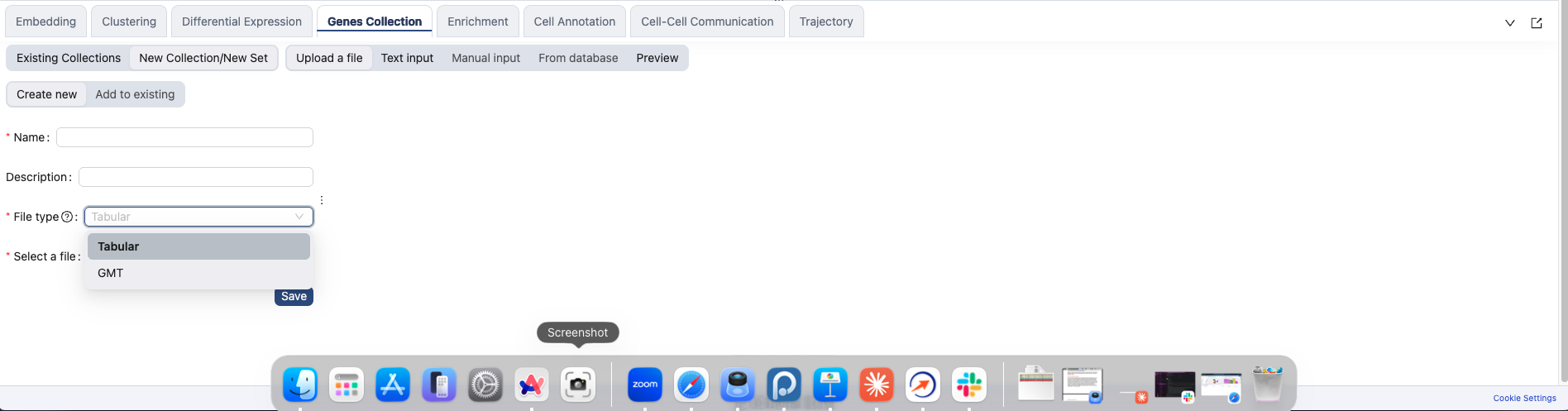
3Upload a file
Upload gene sets from a file. GMT is the standard gene set format. Tabular accepts a table with a name, a description and a gene list per row.
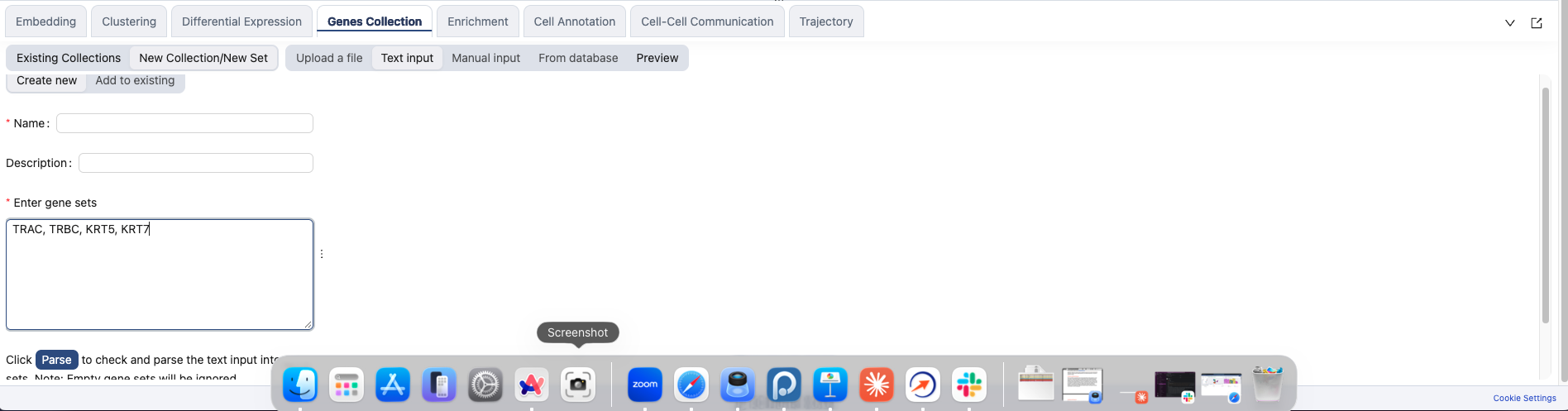
4Paste gene sets as text
Paste gene sets directly. One set per line: a name, a description, then the genes, separated by tabs.
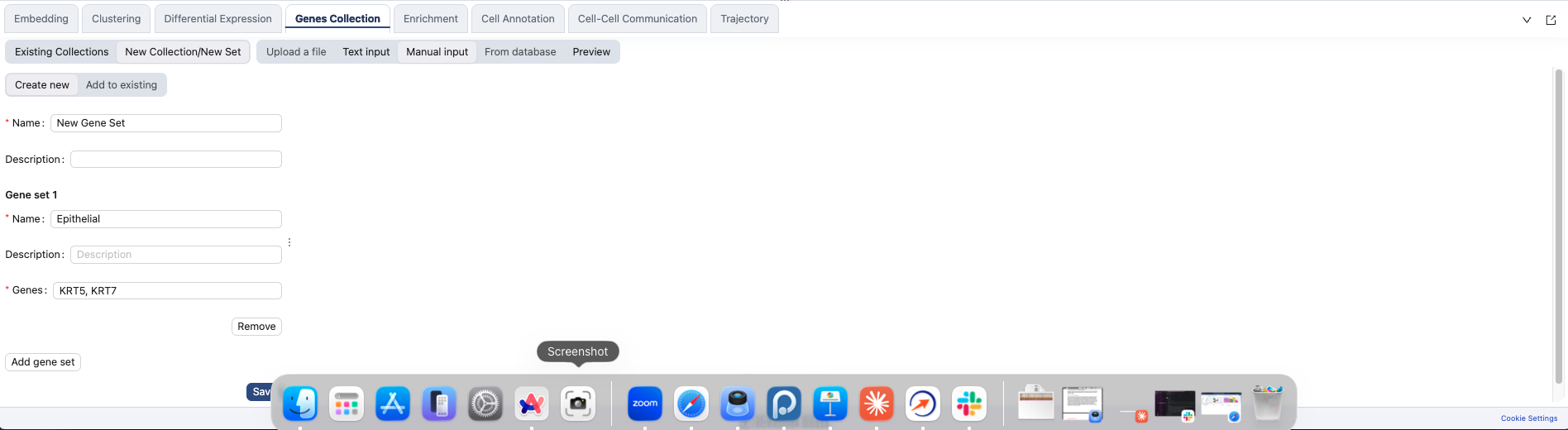
5Enter gene sets by hand
Enter each set by hand. Give it a name and description, then list its genes separated by commas. Add as many sets as you need before saving.
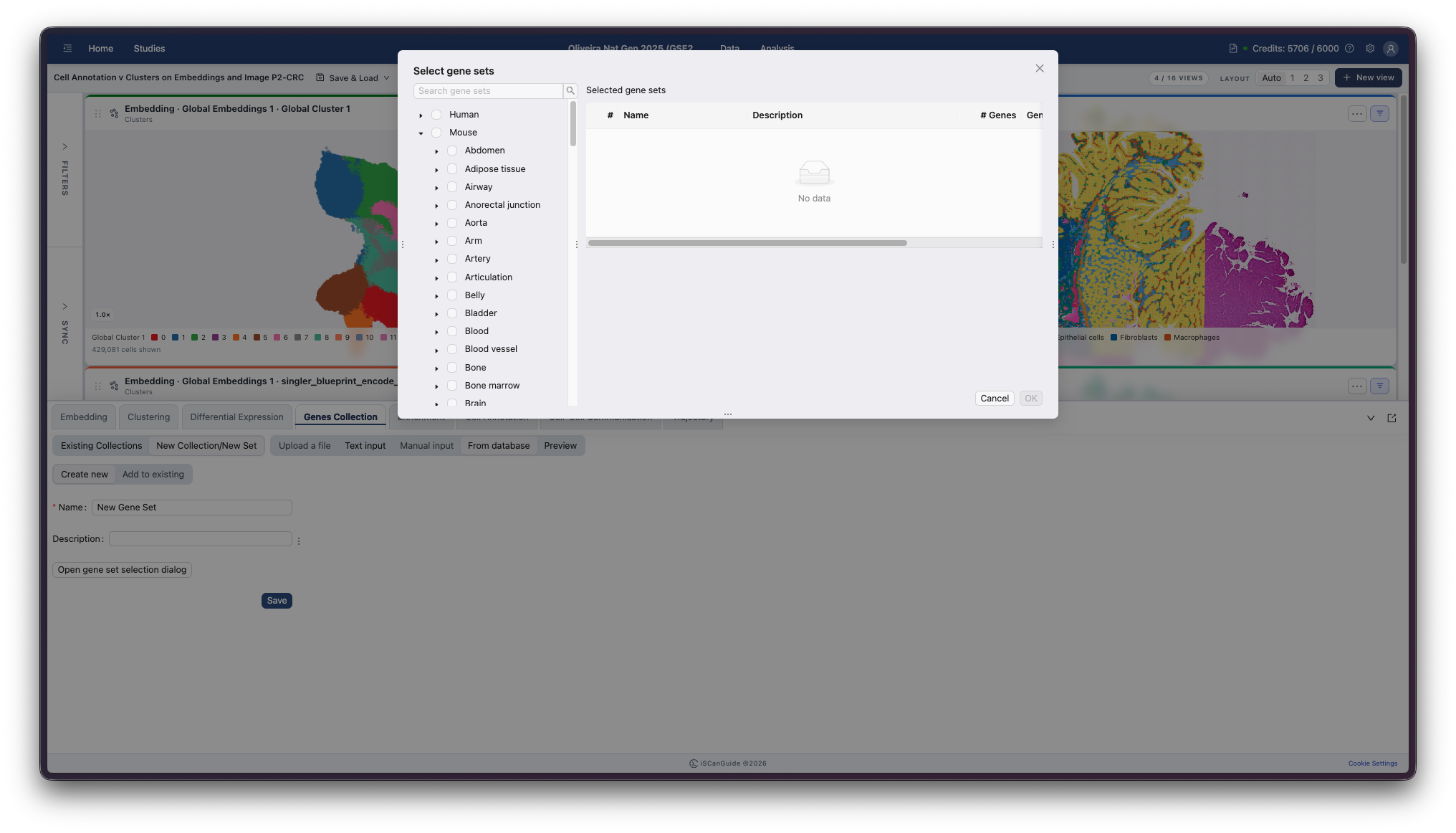
6Take gene sets from the database
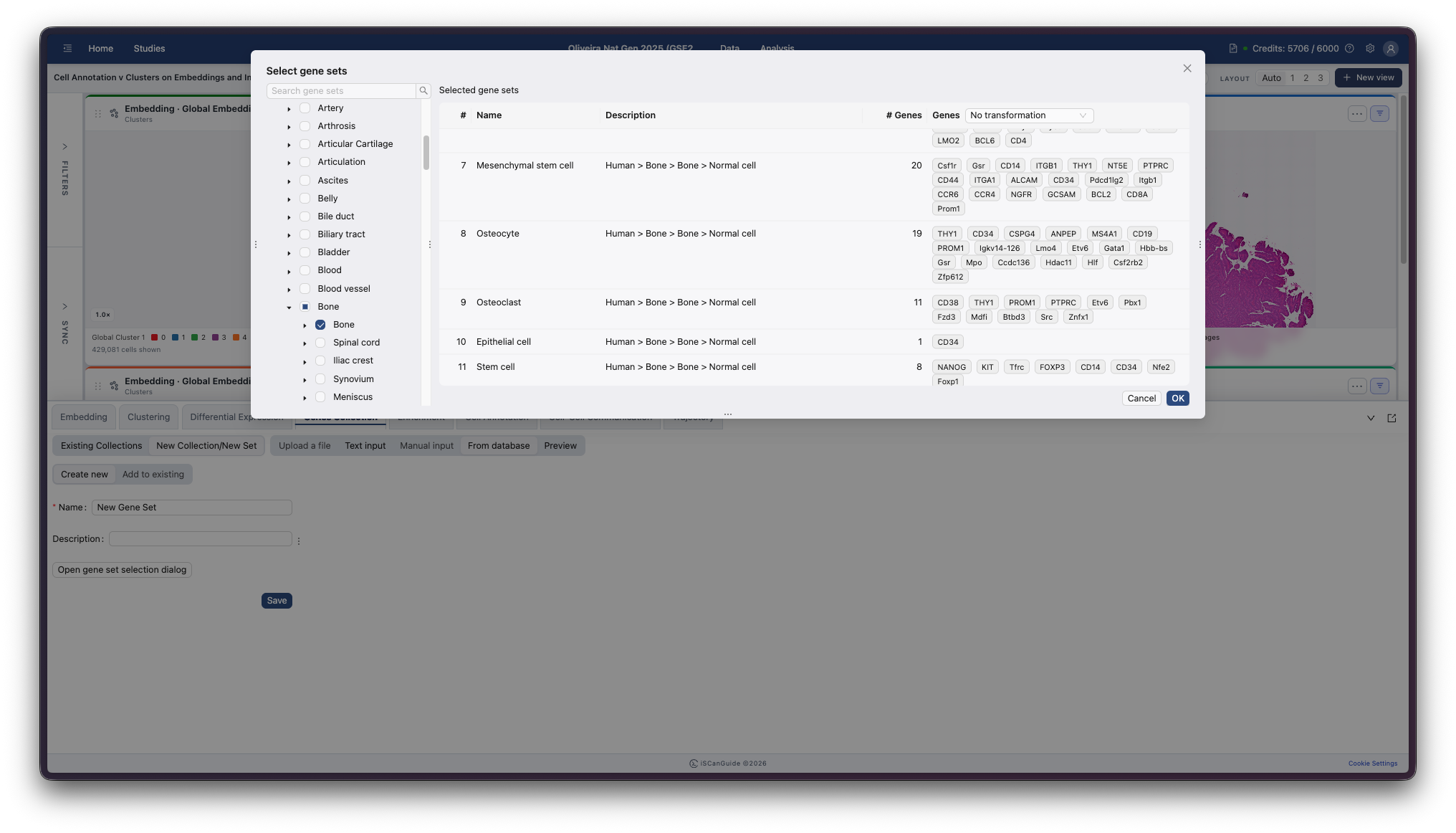
Search the built-in gene set database and tick the sets you want, then click OK. Check the gene-name style before you do: the selector above the Genes column rewrites the names so they match how genes are written in your data.
Reference
The gene-name selector offers No transformation, All uppercase, Uppercase first letter and lowercase rest and All lowercase. Human symbols are usually written in capitals and mouse symbols with only the first letter capitalised, so this is how you line a downloaded set up with your own data.
Note: you can add up to 50 gene sets at a time.
7Preview before saving
The preview lists the gene sets you are about to save with their gene counts. Check it, then click Save. This is worth doing after a file upload in particular.
8Manage your collections
Collections are listed with their gene sets. Expand one to see each set with its organism and tissue details, its genes and counts, and to rename it or delete sets you no longer need.